Schedule LinkedIn posts after you approve them.
Batch the week, approve each draft, then publish. Scheduling is the last step, not a way to skip the read.
7-day free trial · You approve every post · Works in Claude, ChatGPT or our app
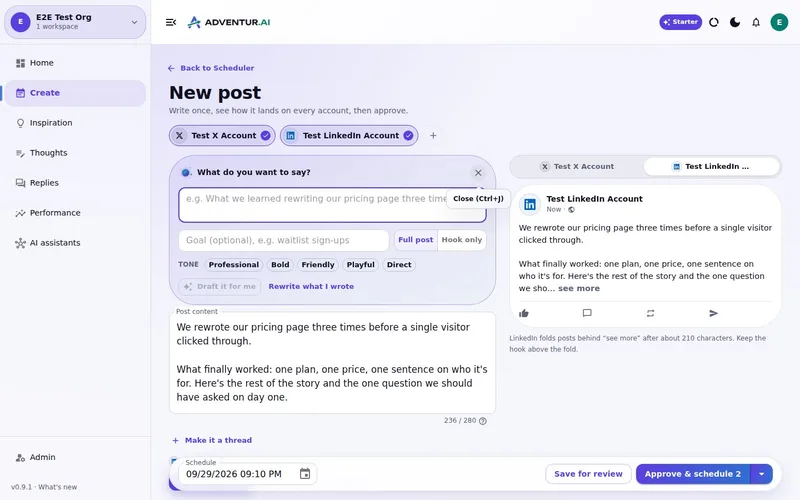

Scheduling is useful. Scheduling unreviewed copy is not.
The reason to schedule LinkedIn posts in advance is simple. You want the profile alive on Wednesday when you will be in back-to-backs. The calendar should carry the work you already judged, not the work you did not have time to read.
Most schedulers invert that. You paste a caption, pick a time, and the "review" is whatever you glanced at while the date picker was open. AI makes this worse, because a fluent draft feels finished.
The order that stays safe:
- Get a draft from stored context, not from a blank box.
- Edit or reject it.
- Approve the exact version.
- Then choose when it goes out.
If step 4 happens before step 3, you do not have a publishing system. You have a delayed send.
How to batch a LinkedIn week and still mean it
Load the week before you open the calendar. Notes, a launch, a lesson, a customer phrase. Deynix already holds brand context; add the specifics for this week so the drafts are about something.
Generate several LinkedIn drafts in one sitting. You are not looking for fourteen. You are looking for the few you would still send. Extra drafts are cheap. Extra publishes are not.
Use Review as a reading room. Read each post as it will appear. Change the hook if it overclaims. Cut the line you would not say on a sales call. Approve only that version.
Then schedule. Put approved posts on the days you want them live. Publishing immediately is there too, for the post that should not wait. Both paths require the same yes.
If you change it later, approve it again. A scheduled post is not a loophole. New words need a new yes. That is how you stop "I tweaked one sentence" from becoming a different post under an old approval.
What scheduling should protect
Your time on shipping days
The calendar holds posts you already accepted, so LinkedIn does not become Wednesday's extra job.
The wording you actually signed
Approval belongs to a version. The queue should not silently swap in a rewrite.
A cadence you can see
Draft, waiting, approved, scheduled. If those states are fuzzy, weeks collapse.
The same rule for assistants
A connected assistant can help draft and, with permission, schedule. It does not get a private back door.
How Deynix does this today
Scheduling is shipped. LinkedIn personal profiles are live. You can approve a post and place it on the calendar, or post it now. The scheduler shows scheduled posts grouped by day in the workspace timezone.
Deynix will not pick a mystical "best time to post" as a promise on this page. You choose the time. Suggested slots exist in the product as a helper, not as a claim that a clock will save a weak post.
It will not schedule LinkedIn company pages yet; those are still waiting on platform approval. It will not auto-queue a changelog. It will not skip Review because a date is set.
For the writing step that should happen first, see LinkedIn posts that still sound like you. For the wider approval model, see nothing publishes until you approve it.
Batch the week, then look at the calendar
Ask for the LinkedIn drafts first. Approve the ones you would send. Only then give them a time. That order is the whole product.
What this
is for.
Founders and lean operators who want LinkedIn to keep moving during a busy week, without skipping the read-through.
Prepare several LinkedIn posts while the context is already loaded.
Approve the exact version that will go public, then choose when.
Keep scheduling as the last step, never as a substitute for reading the post.
Ask in the chat
you already use.
Connect Deynix to Claude, ChatGPT or Cursor and ask for the week. Your assistant uses your brand, drafts the posts and visuals, and everything waits in Review for you.
See how it connectsYou: Turn what I learned hiring our first engineer into a LinkedIn post and a carousel. Tool call list_top_posts: Story posts lead on LinkedIn Tool call create_carousel: 6-slide carousel · your brand Tool call create_draft_post: LinkedIn draft in Review Agent: The post opens with the mistake, not the lesson. The carousel is attached. Want it on Thursday morning? You: Yes, approve it. Tool call approve_post_group: Scheduled Thu 08:30 LinkedIn post, Pending approval: Our first engineering hire nearly didn't happen. I'd written the wrong job description.
Illustrative demo. Your numbers and drafts will differ.
Three steps
to your first week.
Connect the brand
Point it at your site, social history and Notion so drafts start from real context instead of a blank prompt.
Inspect what it learned
Correct positioning, audience and voice once. That correction applies to every future draft.
Approve the first batch
Scroll, edit or reject. Nothing public goes out until you approve it.
Questions, answered.
Can I schedule LinkedIn posts in advance with Deynix?
Yes. Scheduling is live. Approved posts can be placed on the calendar for a time you choose, or published straight away. Unapproved drafts stay in Review.
Does scheduling skip approval?
No. Approval is the default gate. You review the draft, then you schedule it. Editing an approved post asks for approval again so an old yes cannot cover new words.
Can I schedule from Claude or ChatGPT?
If you connect the MCP server and grant schedule permission, your assistant can put an approved post on the calendar. It still has to be a post you have allowed through Review.
Updated 19 October 2026
Try it on
a real week.
Connect a brand, ask for a week of posts and approve the ones that sound like you. Nothing publishes until you say so.
7-day free trial · Card needed, cancel any time